
Playlists of episodes and movies that play in the apps you already have.
1. Tell ReelQueue which services you have
Pick the streaming services you subscribe to. ReelQueue only opens episodes in those, and tells you when something is only on a service you don’t have. It never sees your subscriptions or signs in to them.
2. Build a playlist
Add shows and movies on your iPhone, iPad or on the web, in the order you want to watch: a whole franchise in story order, a “monster of the week” cut, or tonight’s lineup. Start from a Starter Playlist if you like, or add your own placeholders, such as a YouTube video or a reminder to watch the finale at a friend’s.
Follow a show to keep your place in it. Playlists that include its episodes work around where you are.
3. Press play
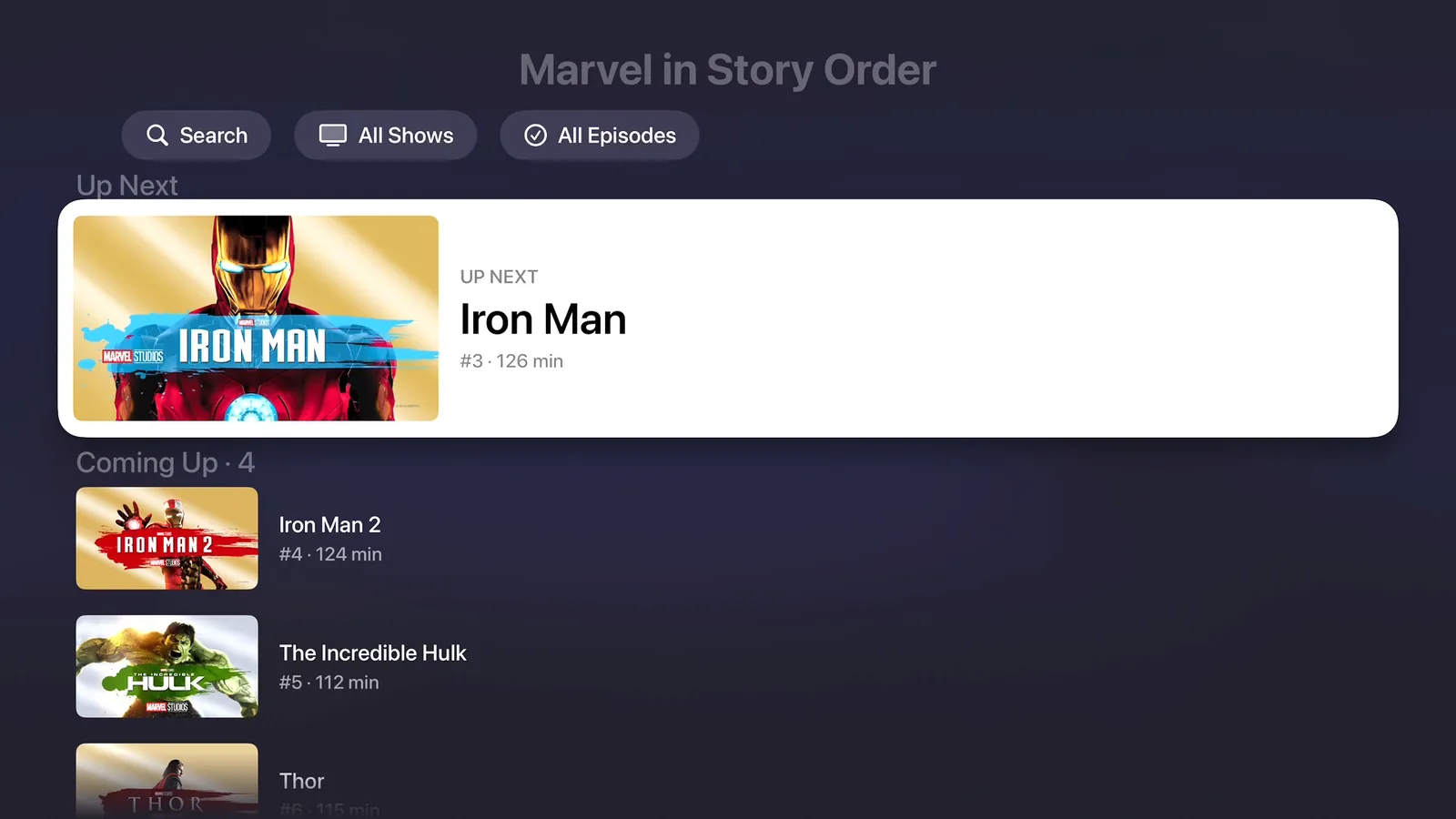
On Apple TV, select what’s up next. ReelQueue opens it in the right app, straight to the episode when the app allows it. When an app can only open to the show, ReelQueue tells you which episode to pick. You can also start the TV from your iPhone with Play on Apple TV, or watch on your phone or in a browser.
Some apps ask who’s watching each time they open. Pick your profile; ReelQueue can’t choose it for you.
4. Come back
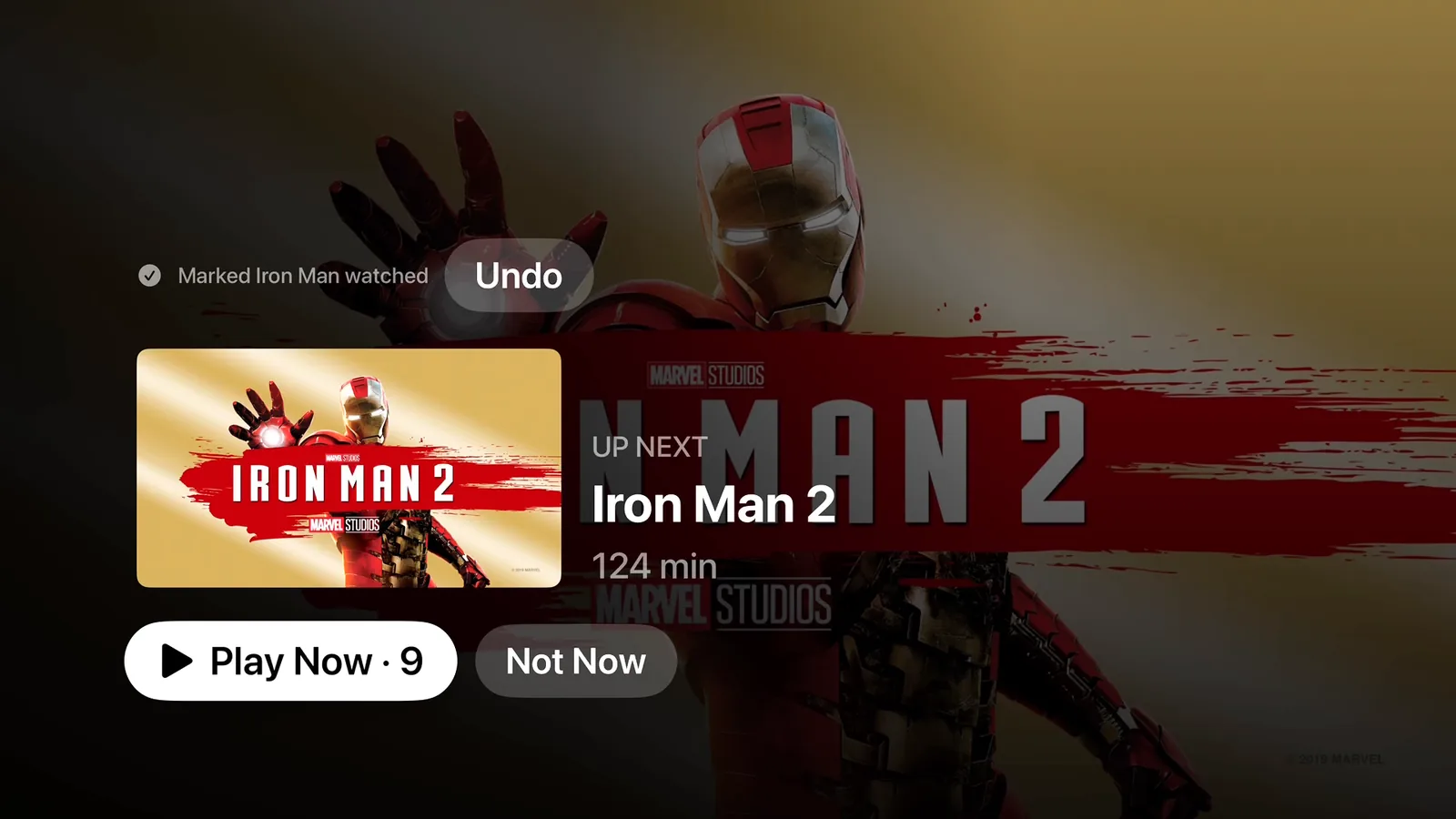
When you’re done, switch back to ReelQueue (double-press the TV button). It marks what you watched and lines up the next one, ready to play.
With Track What You Watch turned on in ReelQueue on your Apple TV, it checks what the streaming app says played, so episodes that played on their own are marked too, and stopping partway is noticed. Without it, or for apps that don’t report it, ReelQueue goes by how long you were away and asks when it can’t tell. You can always mark something watched or unwatched yourself.
Everywhere you watch
Your playlists stay in step on Apple TV, iPhone, iPad and the web. Sign in with Apple or with a code sent to your email. Sign your Apple TV in by scanning its code with your iPhone, and a computer by approving its code the same way or with an emailed code.
Questions? See Support.